
Submitting Major (and associated sequences), Minor and Certificate Proposals

Before starting a program proposal review the procedure information on the Curriculum website.

Overview

  • Each major is associated with a degree type and they are built as individual majors in Campus Solutions therefore each requires a separate proposal submitted in Coursedog. Example, if you want to propose a new major or make revisions to a major that offers both a B.A. degree and a B.S. degree, two separate proposals are required.
  • All program proposals are approved for the start of a new catalog year. The ISU Catlaog Year begins on the first day of summer Session. 
  • Undergraduate majors and sequences must have a Sample Plan of Study. 
  • After a major (sequence), minor, certificate proposal is approved, the catalog year it is approved for is updated with copy from the proposal. This includes, requirements, sample plans of study, major/sequence/minor/certificate descriptions, and modality.
  • Review general proposal instructions and proposal deadlines
  1. Login to Coursedog's Curriculum Managment
  2. Click on +New Proposal on the right side under Actions. 
    start new proposal
  3. Click on Major (sequences), Minor, Certificate at the prompt and then the appropriate proposal type depending on your needs. 
    program form routing

Information about the following:


New Major (and associated sequences), Minor, or Certificate

  1. Do not use this proposal type to propose a new sequence for an existing major. You must use the Revision to Major proposal form since the major exists and you want to add a new sequence to it. 
  2. All proposals auto save. If you leave a proposal before submitting it, when you log back in you will find it in Drafts on the left navigation. 
  3. The top section of the proposal form pertains to the Major/Minor/Certificate - depending on which you are proposing and additional administrative data. 
    major, minor, certificate
  4. The Sequences (Subplans) section is where you can add data for associated new sequences if you are proposing a new major. Minors and Certificates cannot have sequences.
  5. Complete the fields on the proposal. Some fields will have notes next to them, this is important information, please read it carefully before completing the field. Some fields will be only visible and not editable. If you are not sure how to complete a field, please stop and email Curriculum@ilstu.edu, completing a form incorrectly will ultimately take more time. 
  6. Some questions, such as "Does this major (or associated sequences), minor or certificate lead to teacher certification/licensure?" impact the proposal workflow so take your time responding to the question. If you answer incorrectly, the proposal may have to be routed back to you and the workflow reset which will take additional time. 
  7. The Coursedog Only Catalog Fields section includes a Catalog Display Name and Brief Description for the Major, Minor or Certificate, depending on what type you are proposing. Refer to the notes next to the fields for guidance on the required formatting. 
  8. Refer to Requirements and the Sample Plans of Study for information about making revisions to these proposal sections.
  9. When you are finished completing all the proposal fields, click Submit.

Minor Edits to Major (and/or associated sequences), Minor, or Certificate 

  1. This proposal type may be used for adding electives, editing the description of the major, sequences, minor or certificate, or changing the program modality. Do not use this proposal type to request changes to total hours or required courses. 
  2. After selecting Minor/Simple Edits, Select Summer for the Effective Start Term. All program proposals must start in the summer, since ISU's catalog year begins on the first day of summer session. Refer to the proposal deadlines for the upcoming catalog. Do not enter an Effective End Term.
  3. Select the program. Programs are listed by the program code, which typically starts with the department abbreviation (FCS, HIS, etc.) and then the degree type abbreviation, if applicable, then MAJ (for major) or MIN (for minor), and then the name of the program will follow. You can start to type in the name of the program and it will show you options to select. 
    Be careful not to accidentally select a program that is inactive it will have (Inactive) after the title. 
    You cannot "reactivate" a program this way. If you have questions, email Curriculum@ilstu.edu 
    revise program form routing  
  4. All proposals auto save. If you leave a proposal before submitting it, when you log back in you will find it in Drafts on the left navigation.
  5. Complete the fields on the proposal. Some fields will have notes next to them, this is important information, please read it carefully before completing the field. Some fields will be only visible and not editable. If you are not sure how to complete a field, please stop and email Curriculum@ilstu.educompleting a form incorrectly will ultimately take more time. 
  6. Refer to Requirements and the Sample Plans of Study for information about making revisions to these proposal sections.
  7. The Coursedog Only Catalog Fields section includes a Catalog Display Name and Brief Description for the Major, Minor or Certificate, depending on what type you are proposing changes to. Refer to the notes next to the fields for guidance on the required formatting.
  8. When you are finished completing all the proposal fields, click Submit.

Revision to Major (and/or associated sequences or to ADD a new sequence to an existing major), Minor, or Certificate

  1. Use this proposal type to make revisions to existing majors (and/or associated sequences or to ADD a new sequence), Minor or Certificate. Revisions can include revising/adding/removing required courses or electives, changes to sample plans of study, changes to modality and/or descriptions. 
    Revise program proposal form
  2. After selecting Revise major/sequence/minor/certificate, Select the Effective Start Term. All program proposals must start in the summer, since ISU's catalog year begins on the first day of summer session. Refer to the proposal deadlines for the upcoming catalog. Do not enter an Effective End Term. 
  3. All proposals auto save. If you leave a proposal before submitting it, when you log back in you will find it in Drafts on the left navigation.
  4. Complete the fields on the proposal. Some fields will have notes next to them, this is important information, please read it carefully before completing the field. Some fields will be only visible and not editable. If you are not sure how to complete a field, please stop and email Curriculum@ilstu.educompleting a form incorrectly will ultimately take more time.
  5. Some questions, such as "Does this major (or associated sequences), minor or certificate lead to teacher certification/licensure?" impact the proposal workflow so take your time responding to the question. If you answer incorrectly, the proposal may have to be routed back to you and the workflow reset which will take additional time.
  6. Refer to Requirements and the Sample Plans of Study for information about making revisions to these proposal sections.
  7. The Coursedog Only Catalog Fields section includes a Catalog Display Name and Brief Description for the Major, Minor or Certificate, depending on what type you are proposing changes to. Refer to the notes next to the fields for guidance on the required formatting.
  8. When you are finished completing all the proposal fields, click Submit.

Inactivating a major (and/or associated sequences), minor or certificates

  1. Use this proposal to inactivate a major (and/or associated sequences), minor or certificate.
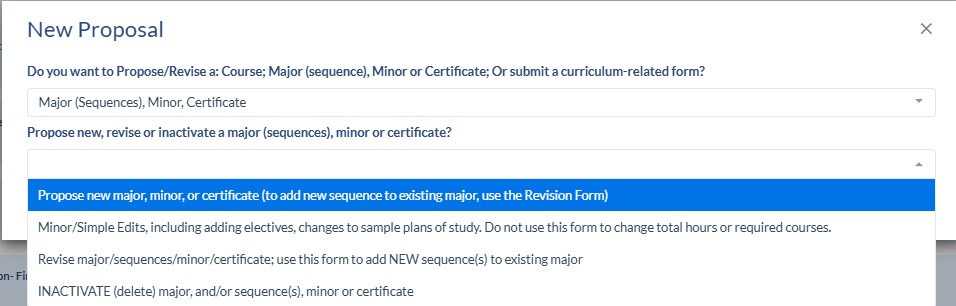
  2. Select INACTIVATE (delete) major, and/or sequence(s), minor or certificate 
    program proposal form routing
  3. Select the Effective Start Term. All program proposals must start in the summer, since ISU's catalog year begins on the first day of summer session. Refer to the proposal deadlines for the upcoming catalog. Do not enter an Effective End Term.
  4. All proposals auto save. If you leave a proposal before submitting it, when you log back in you will find it in Drafts on the left navigation.
  5. Complete the fields on the proposal. Some fields will have notes next to them, this is important information, please read it carefully before completing the field. Some fields will be only visible and not editable. If you are not sure how to complete a field, please stop and email Curriculum@ilstu.educompleting a form incorrectly will ultimately take more time.
  6. When you are finished completing all the proposal fields, click Submit.

Adding/making revisions to the Requirements section

  • The Requirements section of proposals are where you will build the course requirements for the major, sequence(s), minor or certificate. 
  • At ISU we only use the SIMPLE REQUIREMENTS
    simple requirements
  • Program requirements built in Coursedog are not integrated with Campus Solutions, ISU's student information system. 
  • Program requirements that are built in Coursedog proposals are displayed in the Catalog the proposal was approved for. After the proposal is approved, the Curriculum staff must then build/revise the requirements in Campus Solution's degree audit system so students and advisors can view students' progress towards degree completion and the Registrar's Office can audit students for degree completion and award degrees. 
  • As a proposal author you only add/revise Requirements for majors, sequences, minors and certificates. The Curriuclum staff add and maintain the General Education Program, and other appropriate University-level requirements. 

Building new Simple Requirements for a new major, sequence, minor or certificate

  1. In this field you can add text about general/overview requirements the major, minor or certificate. This is not for a general description of the program, description fields are located in other sections of the proposal. If the major requires that all students complete one of the sequences, you should include this statement in this field: "Students must complete one of the following sequences." 
    major minor certificate copy field
  2. To add a Requirement, scroll down to the end of the section and click on the blue ADD + and select Requirement. add requirement
  3. After you add the Requirement, you will see it listed as Untitled Requirement, click on it to set the Requirement Level to Major, Minor or Certificate or Sequence, depending on the type of requirements you are building.
    Note that all requirements for sequences must be at the sequence level, do not add some requirements at the major level and then some at the sequence level. 
    untitled requirement setting requirement level
  4. Once you click on the Requirement Level, it will be moved up to that level. Scroll up on the page to find it either under Major, Minor or Certificate or Sequences. 
  5. Click on it again and do the following: 
    1. Do not change the Type - it must be set to Completion Requirement
    2. Turn on Visibilty- Show in Catalog so it is blue. 
    3. Name field - complete it based on the following guidelines: 
      1. "Major in _______ - 45 Minimum Required Hours"
      2. "Minor in ________ - 15 Minimum Required Hours"
      3. "_______________ Certificate - 9 Minimum Required Hours" 
      4. "_______________ Sequence - 55 Minimum Required Hours" (Do not include the name of the major with the name of the sequence) Example: Agribusiness Sequence - 59 minimum Required Hours
    4. Click on the ADD REQUIREMENT RULE
      This is where you will add required courses and/or elective courses and set the requirement parameters. 
      adding requirement
      1. Set the Rule Condition to the one the best meets the needs for this requirement. Examples that are most often used: Complete All Of; Minimum Credits, Complete At Least X Of, Freeform
        1. Minimum Credits - then select the total minimum credits students must complete to fulfill the requirement 
        2. Complete At Least X Of - then select the number that students must complete to fulfill the requirement
        3. Freeform - this rule condition is used when there are not specific courses to list in the requirement. 
      2. If you select Complete All Of, Minimum Credits or Complete At Least X Of as the Rule Condition, then you will select the Data Type. ONLY select Courses. Keep the Filter By to Subject Code. 
      3. In the Select Course field, search for courses by subject code and course number with NO space inbetween. Example: AGR109. The list may contain INACTIVE courses; be sure not to add an inactive course. 
        select courses for requirement
      4. Continue to type course subjet codes and numbers into the Select Course field to continue to add courses that are required.
      5. Only use the "+" to add a course that may be completed as an alternative to the other course. Example: If a student can complete ECO101 or ECO102, add ECO101 then click on + and change the "And" to "Or" and then add ECO102. 
        add alternative course option
      6. To add another course, that is not an alternative course, go to the Select Course field and search by subject code and number. It will look like this:
        requirement course list
        1. Rule Name field: This field is required. We recommend the following. 
          "Required courses" if the Rule Condition is "Complete All Of" 
          "Elective courses" if the Rule Condition is "Complete At Least X Of" or "Minimum Credits" 
          We recommend not adding a lot of additional "extra" copy to the Rule Name, the simpler the better. 
        2. Rule Description field: is not required. The copy may be used for copy that may be needed to add context about the requirement. For example, if a 398 professional practice courses is required, and the course is variable hours 1-6, you can indicate in this field "3 credit hours of 398 are required". The copy will display before the list of courses. Keep the copy brief. 
        3. Rule Notes field: is not required. The copy may be used to add notes such as recommended electives. The copy will display after the list of courses. 
      7. Freeform Text Rule Condition - this Rule Condition type is used when there are not specific courses to be listed. Example: Complete 6 credit hours of art history.
    5. Additional Comments field: is not required. Copy in this field should pertain to the entire set of requirements for the program, not just one specific requirement. 
    6. Click Stop Editing when you are done with the requirement.
    7. Example of how Requirements display in the catalog.  
      example of requirements
    8. Click Add Requirement to add another Requirement - repeat steps 1-6 for each requirement needed. 

Revising Existing Requirements 

  1. In the Requirements section of the proposal, click on the Major, Minor, Certificate or Sequence that you need to revise.  
  2. Scroll to the Requirement that you need to revise and click on EDIT in the lower right corner at the end of the Requirement. 
    Edit requirements
  3. To remove a course from a list, click on the red X.
  4. To add a course to a list, in the Select Course field, start typing course subject code and number with no space in between. Inactive courses may also be included in the list, be sure not to accidentally select these. Click Stop Editing when done. 
    select course
  5. If the Requirement Rule Condition is Minimum Credit Hours or Complete At Least X Of, you can change the number of courses required to fulfill the requirement. Click Stop Editing when done.
  6. If you need to completely remove/delete a requirement, click Edit and then Remove. 
  7. To add a new Requirement, click Add Requirement Rule at the end of the list of all Requirements. Then follow the steps noted above for guidance on adding Requirements.

Adding/making revisions to Sample Plans of Study

Sample Plans of Study (referred to as Degree Maps by Coursedog), are a required part of proposals for undergraduate majors and sequences only. Do not add Sample Plans of Study for minors, certificates or graduate programs. 

  1. On the proposal, scroll down to the Sample Plans of Study (Degree Maps) - Undergraduate Majors and Sequences Only section. 
  2. Click on + NEW MAP
  3. Degree Map Name field - use the following format: "Major in __________" or "_______________ Sequence" 
    Examples: "Major in Social Work", "Crop and Soil Sequence"
  4. Degree Map Narrative field - copy and paste the copy to the right of this field. This copy is general infomation that pertains to all majors and sequences. The last line of the copy should only be included for Accelerated Sequences. 
    "To graduate in an accelerated sequence a student must take at least one course for graduate credit."
  5. Under Miscellaneous, turn on "Displayed in Catalog" - it should be blue. Do not turn on the "Set as Default".
  6. Click on + NEW SEMESTER
  7. Click on Undefined Year, Undefined Term 
  8. Select the Year and the Term 
  9. Click on + NEW REQUIREMENT
  10. Click on the requirement and then click EDIT 
    edit sample plan requirement
  11. Only use the following Requirement Types: Courses, Generic and Course Sets. Course Sets type should only be used when adding, AMALI, IDEAS, BS-SMT, Gen Ed - Communication and Composition course (ENG 101 or 102), or the Bachelor of Arts World Language requirements.
    1. To add a specific course, select Courses for the Requirement Type, then in the Requirement Select field, type the course subject code and number with no spaces in between. Example, ACC131. Click the course to add it. If the course is a variable hour course, click on the Details tab and then Actual Credits to set the specific min. and max hours that you want to add to the semester. 
    2. To add another course, click the +ADD COURSE CHOICE 
      add course to sample plan of study
    3. To add a course option, with an "or", type the course subject code and the number, no spaces in between in the Requirement Select field. 
      add alternative course to sample plan
    4. To add a Course Set requirement, Select Course Set for the Requirement Type, and start typing the name of the requirement in the Requirement Select field. 
      1. After you add it, click on the DETAILS tab and click on Actual Credits
      2. Min hours should be set to 3 and change the max hours to 3 or 4 depending on the Requirement.
        Example, if you are adding the BS-SMT (Bachelor of Science - Science, Mathematics, Technology requirement, you can set the max to 5 since there are 5 credit hour courses that are approved to fulfill this requirement or you can set it to 3 or 4 if that is what will work for the sample plan of study. 
        If you forget to set the max hours you may see a very high total of acutal credits for that semester because it will be counting all of the courses that are part of the Course Set. 
        set hours for sample plan
      3. Generic Requirement Type: use this for Major electives and University wide electives and all Gen Ed categories, except Communication and Composition. Students must complete ENG 101 and COM 110 their first year so you should use the Course Set for this category. 
        1. In the Requirement Select field, type the name of the requirement using the following formats:
          General Education course
          Major elective or Senior college level major elective 
          University wide elective or Senior college level major elective 
        2. Click Add 
        3. Click on the Details tab and enter the min. and max. hours 
        4. Click Save
      4. Continue to Add Requirements until you get the complete set of requirements for that semester. You will see the total Actual Credits for the semester at the top 
        Total actual credits sample credits
    5. Repeat these steps for every year and semester for the 4 year sample plan. 
    6. At the very top of the Sample Plan you will see the Total Degree Map Credits under the Degree Map Name. This is automatically calculated based on the requirements built. This must be a minimum of 120 credit hours since that is required for every undergraduate degree. Most Sample Plans will have a variable number of credits since some courses are variable hours. 

After a Proposal is Submitted

  • After a proposal is submitted, it will move through the workflow steps associated with the proposal type.
  • The reviewers associated with each workflow step will review the proposal and the reviewers who have permission to make decisions on proposals (committee chairs, department chairs, deans, AVP for undergraduate or graduate education) will make a decision. At each workflow step, the designated person for that workflow step will make a Decision about the proposal. Decisions include:
    • Approve - Moves the proposal on to the next step in the workflow
    • Reject - Kills the proposal, this cannot be undone by anyone, including the Curriculum staff or Coursedog. The author will receive an email notifying them that the proposal was Rejected.
    • Route Back - The person making the decision must indicate if they are routing the proposal back to the author or to a previous step in the workflow. Most of the time, if this decision is made, they are routing the proposal back to the author for minor edits.
      • The reviewer will indicate if they want the proposal to go back through the entire workflow or to return the proposal to the current step. The reviewer must also include comments about their decision.
      • If a proposal is routed back to the Author, the Author will receive an email from Coursedog. The email will include a link to the email. If the reviewer made comments about the proposal, they will also be included in the email.
      • To make edits, the author can click Edit, make edits and hit save.
        A prompt will appear asking if the proposal workflow should reset and go back through the entire workflow or return to the current step (back to the reviewer who routed the proposal back to the author). The Author will typically select "return to current step" but they should review any comments made by the reviewer. You can see comments made in the Proposal Toolbox area under the Activity tab, and scroll down to the bottom to see the latest. 
        author edit proposal
      • After the author saves the edits made, they must click Approve/Resubmit and Submit Decision in the Proposal Toolbox to move the proposal back into the workflow.
      • If the Author decides they do not want to make the edits, and they don't want to resubmit the proposal back to the workflow, they can click Reject. Clicking Reject kills the proposal and this cannot be undone by anyone.