Building New and Revising Requirements for Program Proposals
New Features and Layout for the Requirements Section of Proposals are being released in November. If you have questions as you are working on a proposal please email us at Curriculum@ilstu.edu
Coursedog Training Video: Building New and Revising Requirements- This video, while still helpful, is not based on the new features released in November, the video will be updated as soon as possible.
- The Requirements section of proposals are where proposal authors build the course requirements for majors and associated sequence(s), minors and certificates.
The copy in this section is integrated with the Coursedog Catalog. All of the fields and courses listed in the Requirements Section of the proposal become Catalog copy.
- At ISU we only use the SIMPLE REQUIREMENTS builder.
- Program requirements built in Coursedog are not integrated with Campus Solutions, ISU's student information (degree audit) system. The Registrar's staff manually build new/revise degree audits directly in Campus Solutions for all new majors (and sequences), minors and certificates, based on the approved Catalog copy.
- Program requirements that are built in Coursedog proposals are displayed in the Catalog the proposal was approved for.
-
Proposal Authors only add/revise Requirements for majors, sequences, minors and certificates.
The Curriculum staff add and maintain the General Education Program, and other appropriate University-level requirements.
Jump to the Revise Requirements Information
Building New Requirements for a New Major, Sequence, Minor or Certificate
The following information is based on Coursedog features released in November 2026.
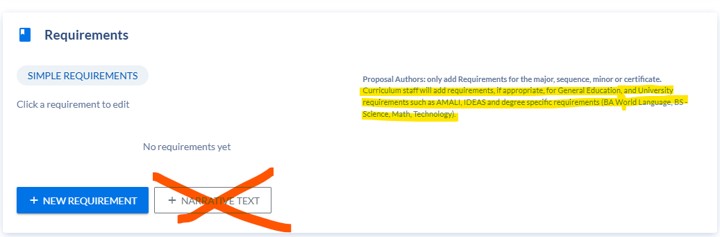
- In the Requirements section of the proposal, Click on + NEW Requirement.
ISU does not use the +NARRATIVE TEXT. There are fields within each Requirement Rule that allows you to add general supporting text.
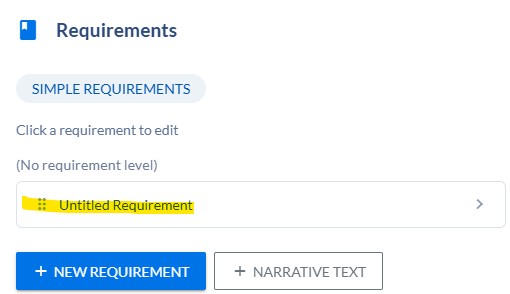
- An Untitled Requirement will appear.
- Click on the Untitled Requirement to edit the requirement (name it and add courses).
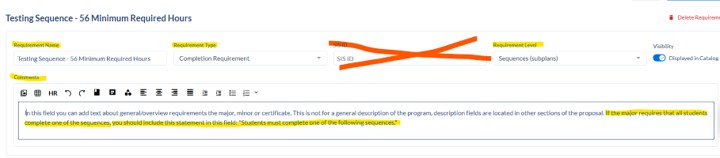
- The Requirement Name field must be completed using the following standard naming conventions.
"Major in _______ - 45 Minimum Required Hours"
"Minor in ________ - 15 Minimum Required Hours"
"_______________ Certificate - 9 Minimum Required Hours"
"_______________ Sequence - 55 Minimum Required Hours" (Do not include the name of the major with the name of the sequence) Example: Agribusiness Sequence - 59 minimum Required Hours
The Requirement Type must be set to Completion Requirement.
ISU does not use the SIS ID field.
Set the Requirement Level to the appropriate level based on the type of program the requirement is associated with (major, minor or certificate OR sequence)
Proposal authors only add Requirements for the major, sequence, minor or certificate.
Curriculum staff will add requirements, if appropriate, for General Education, and University requirements such as AMALI, IDEAS and degree specific requirements (BA World Language, BS - Science, Math, Technology). - Click on +Add Requirement Rule to the right of the Requirement Builder heading.
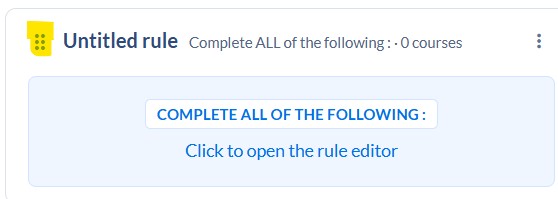
 Then click on the Untitled rule to edit it.
-
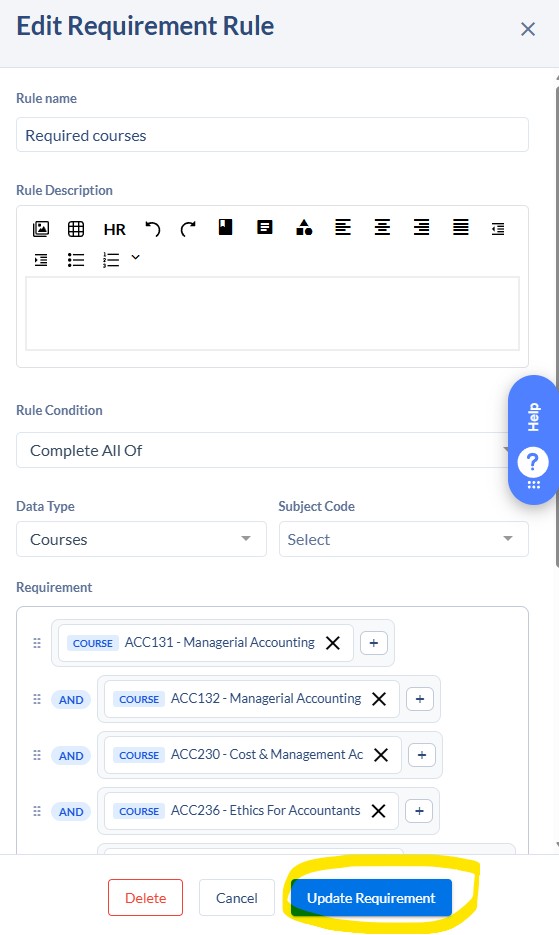
Edit Requirement Rule
Add a Rule name: the rule name should capitalize the first letter of the first word, be simple and not include a lot of detail.
Examples: "Required courses" , "Electives".
If the program will require several elective groups, use one or two words to distinguish between them but keep it general enough so the rule name doesn't need to be changed when the courses in the elective group change, "Business electives" or "Communication electives".
The Rule Description text box is not required and will only display if there is text in the field. The text will display before the list of courses. Example: if the requirement is for required courses and one of the required course is a variable hours course, like a 398 Professional Practice, you can use this field to specify the minimum required credit hours students must complete in the 398 course, "A minimum of 3 credit hours of ABC 398 are required."
Rule Condition field is required to be set from the available options in the drop down menu.
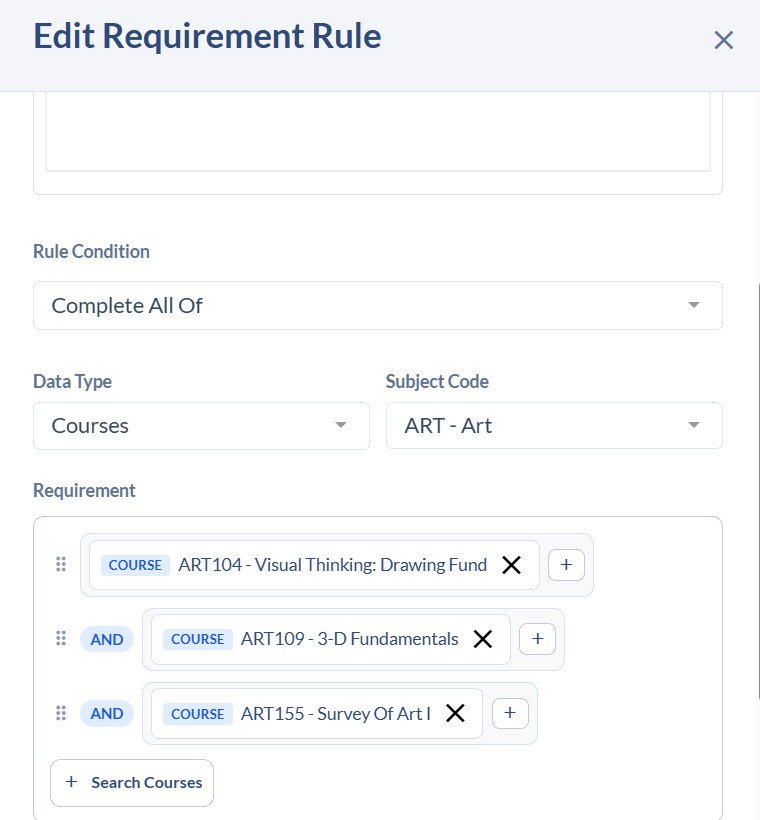
Set the Rule Condition to the one the best meets the needs for this requirement. Examples that are most often used: Complete All Of; Minimum Credits, Complete At Least X Of.
-
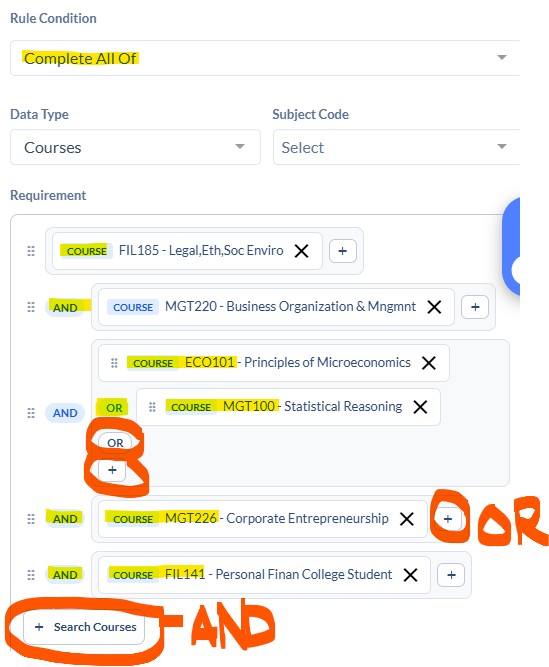
"Complete All Of" Rule Condition type - All courses listed are required. You can use logic connector of "Or" if there is one course that has another course that can be completed as an alternative. Example: ECO 101 or MGT 100.
After adding the ECO 101 Course, click on the + to the right to add the course option of MGT 100. In the image below the MGT 100 course has already been added but you can see the + next to the MGT 226 course, circled in red.
After adding MGT 100, to add more required courses, click on the + Search Courses, the course will be added to the main list of required courses with the AND logic connector.
To search for courses to add to the requirement, you must use the Subject Code and the course number with no spaces, "ECO101", for example. TIP: If you have several courses with the same Subject Code to add, set the Subject Code and then when you search for courses you will only need to enter the course number, it will search for courses with the set Subject Code and the number you type in.
-
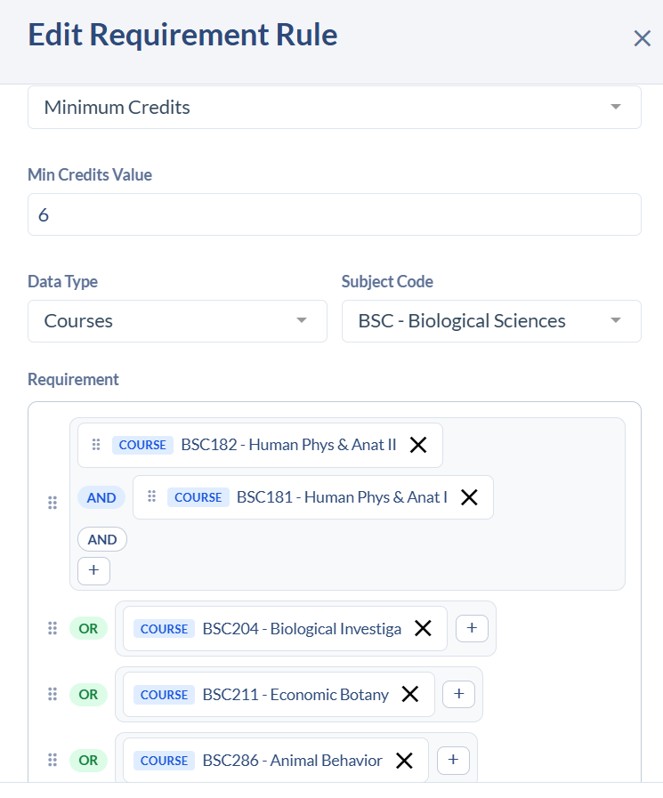
"Minimum Credits" Rule Condition type - You will select the total minimum credits students must complete to fulfill the requirement. The logic connector will be set to "or" for this type of rule condition. You can also use the + next to a course to add a course that must be complete with another course in order to satisfy the requirement (see the BSC 182 and BSC 181 in the example below). Students must complete a total of 6 credits but if they take BSC 182 they must also take BSC 181; or they could choose to take BSC 204 and/or 211 and/or 286.
-
"Complete All Of" Rule Condition type - All courses listed are required. You can use logic connector of "Or" if there is one course that has another course that can be completed as an alternative. Example: ECO 101 or MGT 100.
-
- The "Complete At Least X Of" Rule Condition is very similar to the Minimum Credits, instead of minimum credits you will indicate the min. number of courses the student must complete to fulfill the requirement.
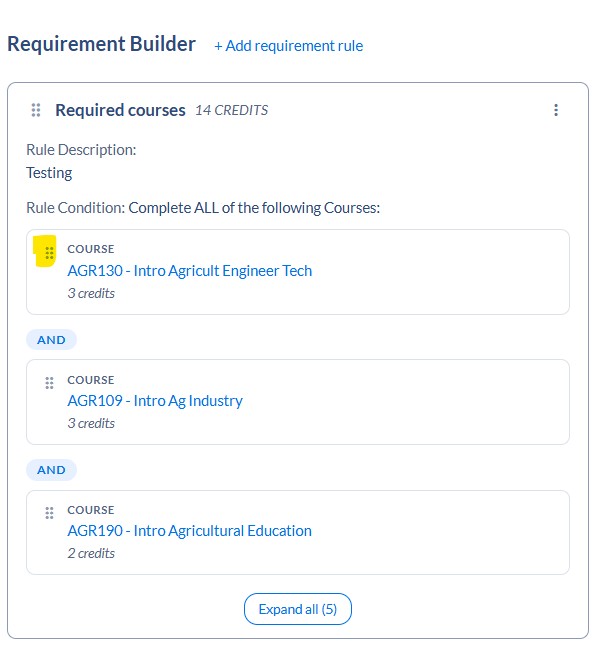
- You can move courses around within a Requirement Rule by clicking on the two columns of three dots to the left of the course and once the hand tool appears, drag and drop the course to where you want it.
- "Freeform Text" Rule Condition - this rule condition is used when there are not specific courses to list in the requirement. An example where this may be useful is when a requirement states "Complete 6 credit hours in any Communication course." This means the University's degree audit system will build this requirement so that ANY course with the COM Subject Code will satisfy the requirement.
- Rule Notes field - is not required. The copy may be used to add notes such as recommended electives. The copy will display after the list of courses.
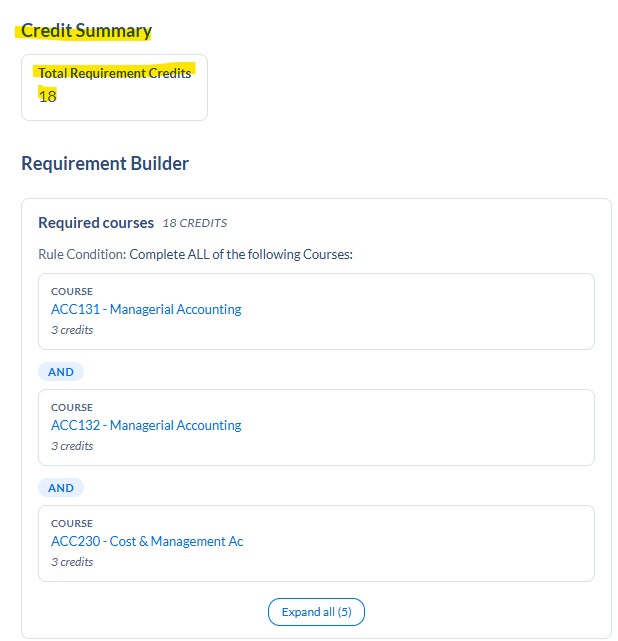
IMPORTANT: The Credit Summary should be disregarded (it will NOT display in the Catalog). It may be inaccuate depending on the types of Rule Conditions used. Proposal authors must always manually calculate the minimum total requried hours and include it in the Requirement Name as outlined above.
Click Update Requirement located at the very bottom when you are done editing the requirement.
Two types of Views: Board View or Table View.
You can move entire Requirement Rules around by clicking on the two lines of three dots to the right of the Rule title and dragging it to where you want it.

After you are done building all the Requirements, click on Save in the upper right corner and click Back to Proposal in the upper left corner to go back and finish the proposal.

Revise Existing Requirements
The following information is based on Coursedog features released in November 2026.
- In the Requirements section of the proposal, click on the Major, Minor, Certificate or Sequence that you need to revise.
- Select the Requirement Rule that you need to revise.
Review the information above under Building New Requirements if you need additional guidance on Editing Requirements and the various Rule Condition types.
-
To remove a course from a list, click on the X.
-
To add a course click on + Search Courses or click on the + to the right of the course if the course needs to be added as an alternative to the course and connected with the "or" logic connector. Review the information above for additional guidance.
- Click Update Requirement located at the very bottom when you are done editing the requirement.
-
To add a new Requirement, click Add Requirement Rule. Follow the steps noted above for guidance on creating new Requirement Rules of various types.
-
If the revisions impact the minimum required hours, the author must manually recalculate and change the number included in the Requirement Name, keeping the standard format.
The Credit Summary displayed should be disregarded (it will NOT display in the Catalog). It may be inaccuate depending on the types of Rule Conditions used.
Major in _______ - 45 Minimum Required Hours"
"Minor in ________ - 15 Minimum Required Hours"
"_______________ Certificate - 9 Minimum Required Hours"
"_______________ Sequence - 55 Minimum Required Hours" (Do not include the name of the major with the name of the sequence) Example: Agribusiness Sequence - 59 minimum Required Hours
- After completing all revisions to the Requirements, click on Save in the upper right corner and click Back to Proposal in the upper left corner to go back and finish the proposal. Authors can save a draft of a proposal and return to it later. Draft proposals will appear in the Drafts folder on the main Coursedog menu.